Tuesday, October 7, 2014

Replacing Old Version of SmartView with New Version on EPM Workspace

Author:-Sanjay Purohit
Audience:  Hyperion Solution Architects and Hyperion Database Administrator
Oracle Hyperion Smart-view is a powerful tool integrates with Microsoft office products such as word, power point and excel.  Oracle is frequently updating the version of SmartView. Most of users are aware and download the latest version from web but few of them relies on workspace.  This is the task of Hyperion system admin to replace the old version of SmartView with new version.


Objective
The purpose of this article is to demonstrate how to replace old version of SmartView from EPM workspace in two steps.
how To
The default location of Smartview is installer is
Oracle/Middleware/EPMSystem11R1/common/epmstatic/wspace/SmartView


Just replace this file with latest version.


Related blogs and URLs


Oracle Smart View for Office

Oracle EPM Previous Version document

http://docs.oracle.com/cd/E57185_01/epm.1112/epm_install/frameset.htm?ch05s09s05.html

Other Client Location


Thursday, October 2, 2014

Hyperion-EPM 11.1.2.3 Installation error On RedHat Linux (6.5)

Author:-Sanjay Purohit
Audience:  Hyperion Solution Architects and Hyperion Database Administrator
Oracle has done a great job to package all the EPM installation files. The EPM 11.1.2.3 installation is pretty smooth and work well. I personally have not seen any issue with installer but this time I had to install Hyperion 11.1.2.3 on RedHat-6.5. As per the certification matrix Red Hat EL 6 (UL1+) is certified to install EPM. The UL1+ refers the version update of operating system. By seeing the certification matrix I assume that 6.5 is also certified. However Oracle policy and EPM 11.1.2.3 support matrix contains the following information:

*************************************************************************************************************
“OS Version: Red Hat EL 6 (UL1+)
A plus sign (+) after a version number indicates that this and all higher versions at that decimal level are certified. Oracle's Backward Compatibility Policy: Oracle acknowledges and supports the backward compatibility assertions for platform software as provided by its vendor. Therefore when vendors assert backward compatibility, subsequent maintenance releases and service packs may be used. If an incompatibility is identified, Oracle will specify a patch release on which EPM System should be deployed (and remove the incompatible version from the supported matrix) or provide a maintenance release or service fix to the EPM System product software. “(Source-Oracle documentation)

*************************************************************************************************************

If we convert Oracle statement in simple English, Oracle assume that Red Hat Enterprise Linux Server release 6.5 can do what Red Hat EL 6 (UL1) is able to do. If Red Hat Linux 6.5 stops supporting a feature that was supported in Red Hat EL 6 (UL1), there could be some issues.  I assume Oracle has never tested EPM installer with RedHat-6.5.

Objective
The purpose of this article is to demonstrate the issue and fix of EPM installer on Red Hat 6.5. I will not clam this as a fix but its workaround to pass the installer error. After making a small change on /etc folder. You should be able to install Hyperion components.

how To
If you are running installer on Red Hat (6.5). You would get following error. I am not sure what is RedHat-Red and how the installer is picking it up.


After spending few hours I figured out that installer is picking up operating system name from /etc/redhat-release file. The original file contains the name of operating system. The secret of Red is still unknown to me.


I just replaced the entire line to “6” and I was able to run the EPM installer with no error.


Related blogs and URLs

EPM 11.1.2.3 Installation and configuration changes

EPM 11.1.2.3 Installation and configuration guide.


Thursday, September 25, 2014

Hidden Version of Hyperion Products after the Upgrade

                                                                             Author: Sanjay Purohit
Audience:  Hyperion Solution Architects and Hyperion Database Administrator
I had to upgrade an environment from 11.1.2.2 to 11.1.2.3. The upgrade path is pretty simple and did not take long time to apply maintenance release and configuration. Oracle recommends not to follow the upgrade procedures but to apply the maintenance release. After applying the maintenance release, I noticed version mix match on workspace. Few of products upgraded to 11.1.2.3 but not all. I have not seen any error during upgrade and configuration. Logs.

Objective
The purpose of this article is to check the hidden product version on jar files. I will demonstrate only one components Hyperion Financial Reporting (HFR) version check steps but same applies to all most all the components.  

how To
To get the version file we would need to look for the file HReports.jar file from below given location Oracle/Middleware/EPMSystem11R1/common/financialreporting/11.1.2.0/lib and follow the below given steps.

·         Copy the file server to your local machine. I prefer to use Winscp. It’s free and easy to use. 
·         Rename HReports.jar to HReports.zip.
·         Right click on it and select Open from the pop-up menu (this allow view of zip contents without extraction)
·         Double click on "META-INF" folder.
·         Right click on file "MANIFEST.MF" and select Open from the pop-up menu.
·         Open file in a text editor such as Notepad or Word.
·         The product version is indicated by the following parameters in the MANIFEST.MF file.
·         The details are you looking for are:-
o    Implementation-Version:
o    Specification-Version:


Related blogs and URLs

Hyperion (EPM) supported Upgrade Paths

Applying Maintenance Release (Installation)

Reason to upgrade

EPM Cumulative Feature Overview tool v 11.1.2.2.x is live

Tuesday, August 26, 2014

Unable to launch Essbase Administration Services (EAS) console

Author: Sanjay Purohit
Audience:  Hyperion Solution Architects and Hyperion Database Administrator
Recently I came across an error with EAS console. Few of our users were not able to launch EAS console with their desktop PC.  I tested on my machine and everything was working as expected so I knew there is something wrong with their machine.


Issue  
EAS console JNLP files are unable to associate with Java Web Start on local machine.


SOLUTION
Most of the Java version comes with Java Web Start Launcher and automatically associates with JNLP files.  But in some case depending on your local PC setting; the JNLP files are unable to associated with Java Web Start (javaws.exe) and cannot launch console.  You need to associate to javaws.exe file with JNLP.
Go to control panel>All Control Panel Items>Default Programs.


 And select the file under Java directory


You should be able to launch EAS console now.

Similar postings

Friday, August 15, 2014

Default Log Location of Hyperion EPM Components


                                                          Author:-Sanjay Purohit 
Audience:-Hyperion Solution Architect, Technical Lead and Hyperion Administrator
Planning application is giving an error message and I am unable to refresh an application. My HFR reports are not working. I just found one article taking about the MIDDLEWARE_HOME and log locations. I don’t understand this language. Why it is happening with my application. Where do I go and see the details message about the error. I get these kind of questions from our clients and I always try to help them over the phone.  All of those questions made me to write this blog. This blog can be very useful for starter. I will also try to provide you Oracle doc URLs for details on each log. I am going to describe the Hyperion terminology and default log location of commonly used Hyperion family products. We will start with Hyperion terminology.

·         MIDDLEWARE_HOME:- is defined during the installation of components and refers the location of middleware components such as WebLogic, HTTP Server, used Java environments. One server can have more than one EPM_ORACLE_HOME its really depends on server configuration. The default location is MIDDLEWARE_HOME. The default location Oracle\Middleware.

·         EPM_ORACLE_HOME:- contains the support files of EPM system. This resides under the MIDDLEWARE_HOME. The default location is Oracle\Middleware\EPMsystem11R1

·         EPM_ORACLE_INSTANCE:- This location is defined during the Hyperion configuration. Most of the EPM/Hyperion components requires deployment location. The default location is Oracle\Middleware\user_projects\epmsystem1.  Users can modify this location during the configuration.

·         WEBLOGIC_DOMAIN_HOME:- most of the EPM components runs on WebLogic. This directory contains server domain for each deployed components. The default name is EPMSystem.

Now we will discusses about the default log location of Hyperion (11.1.2.x) related components. We can differentiates EPM logs in four categories:-
·         EPM Installation Logs
·         EPM Configuration Logs
·         WebLogic Managed Services Logs
·         Application Logs


 Node Manager Start Location
/Oracle/Middleware/wlserver_10.3/server/bin

Opmn  Start Location
Oracle/Middleware/EPMSystem11R1/opmn/bin

EPM Install/Uninstall logs: - This location contains the EPM installation logs. Any error during installation may be seen here.  The default locating is
Oracle/Middleware/EPMSystem11R1/diagnostics/logs/install

Running Uninstaller Location (In case you need to re-install components)
/u02/Oracle/Middleware/EPMSystem11R1/uninstall

EPM Configuration Logs: - The default log location
Oracle/Middleware/user_projects/epmsystem1/diagnostics/logs/config

Running Configurator:-
Oracle/Middleware/EPMSystem11R1/common/config/11.1.2.0

Shared Services Config Schema:-
Oracle/Middleware/user_projects/config/foundation/11.1.2.0

RMI Port
Oracle/Middleware/EPMSystem11R1/common/RMI/11.1.2.0
Oracle/Middleware/user_projects/epmsystem1/RMI

Outline Export from Workspace Location:-
Oracle/Middleware/user_projects/epmsystem1/tmp

LCM Log Location:-
Oracle/Middleware/user_projects/epmsystem1/diagnostics/logs

Patch log location:-
Oracle/Middleware/EPMSystem11R1/cfgtoollogs/opatch/

Diagnostic Logs
Essbase Server Related Logs:-Essbase maintain two logs types of logs to record the server and application related activities. The Location is
Oracle/Middleware/user_projects/epmsystem1/diagnostics/logs/essbase/essbase

Essbase Application Related Logs:-This log keeps the application specific activity logs.
Oracle/Middleware/user_projects/epmsystem1/diagnostics/logs/essbase/essbase/app/(name of application)    

Essbase OPMN logs:-
Oracle/Middleware/user_projects/epmsystem1/diagnostics/logs/OPMN/opmn

Oracle HTTP Server (OHS):-This location contain OHS access and console logs.
Oracle/Middleware/user_projects/epmsystem1/httpConfig/ohs/diagnostics/logs/OHS/ohs_component
·         access_log and access_log.number:- WebLogic-generated log files for a managed server
·         console~OHS~1.log:- Oracle HTTP Server-generated log file, console output
·         ohs_component.log:- Oracle HTTP Server-generated log file

Common Location for All Diagnostic Logs:-This location contains all the installed components start and stop related logs.   
The default location on UNIX Server is:-
Oracle/Middleware/user_projects/epmsystem1/diagnostics/logs/starter
The default log location on Windows Server is:-
Oracle\Middleware\user_projects\epmsystem1\diagnostics\logs\services


      Domain Log Location for Each Deployed Components

Planning Logs:-
C: /MIDDLEWARE_HOME/user_projects/domains/EPMSystem/servers/Planning0/logs   
Planning0.log:-Records Planning Web Application activity
Planning_ADF.log:-Oracle Application Development Framework information
Planning_WebApp.log:-Logs generated for Planning Server interactions
Planning_ADF.log–AD:- (Oracle Application Development Framework) information

Foundation Services Logs:-
Oracle/Middleware/user_projects/domains/EPMSystem/servers/FoundationServices0/logs      FoundationServices0.log–Server and security activity
Framework.log:- EPM System common user interface framework error and informational messages.
SharedServices_Admin.log:-Applications Groups management activity.
SharedServices_Audit.log:-Audit server errors while reading/writing audit information to the database.
SharedServices_Audit_Client.log:-information about the audit client.
SharedServices_CMSClient.log:-Metadata Service client activity.
SharedServices_Hub.log:-Shared Services listener and initialization activity.
SharedServices_LCM.log:-Lifecycle Management activity when it is run from Workspace.
SharedServices_Registry.log:-Shared Services Registry activity.
SharedServices_Security.log:-User management, authentication, and provisioning.
 SharedServices_TaskFlow.log:-Information about Taskflows.
Workspace.log:-EPM Workspace error and informational messages.


Financial Data Quality of Management Enterprise Edition (FDMEE) log:-
Oracle/Middleware/user_projects/domains/EPMSystem/servers/ErpIntegrator0/logs
MIDDLEWARE_HOME/user_projects/domains/EPMSystem/servers/ErpIntegrator0/logs  
ErpIntegrator0.log:- FDMEE application server log
aif-CalcManager.log:- Logs for Calculation Manager.
aif-HfmAdmDriver.log:- Logs for Financial Management ADM Driver.
aif-Planning_WebApp.log:- Logs for Planning Server interactions.

FDMEE Folder Creation Location:- 
Oracle/Middleware/user_projects/domains/EPMSystem

ODI Generated FDMEE logs:-
Oracle/Middleware/user_projects/domains/EPMSystem/servers/ErpIntegrator0/logs/oracledi


Calculation Manger Logs:-
Oracle/Middleware/user_projects/domains/EPMSystem/servers/CalcMgr0/logs
access.log:-What site was accessed inside the Web application (if access logging is enabled)
apsserver.log:-Communications between Calculation Manager.
CalcManager.log:-Calculation Manager Web-tier activities.
CalcMgr0.log:-All Calculation Manager Activities.
apsserver.log:-communications between Calculation Manager and Essbase.
Registry.log:-CM registry activity.
SharedServices_SecurityClient.log:-Logon activities and errors


I spend some time to collect most useful Oracle URLs. Below given URL should be enough to provide you details what you looking for.  

Foundation Services Logs URL

FDMEE Related Logs URL

EPM System Product Logging Matrix URL

Using EPM System Configurator URL

EPM System Configurator and System logs URL

Essbase Diagnostic logs URL

EPM System Product Logging Matrix URL

Planning logs URL

FDMEE logs URL

Application Server, Webserver and EPM system process logs

Using the Log Analysis Utility to Identify Problems


Saturday, August 2, 2014

The Process Flow of Decision Package/Budget Request with Oracle Hyperion Public Sector Planning and Budgeting


Author:-Sanjay Purohit
Audience:-Hyperion Solution Architect, Functional Lead and Hyperion Business User.
We already have discussed about Decision Package and Budget Request in-detail in my previous postings. Decision Packages are a way to present a fund request for a program or new initiative. I will not give you more overview of DP and BR but will show you how to create DP/BR.  The configuration process of DP and BR is complex enough and require deep knowledge of Hyperion Planning and Budgeting applications with business understanding.

Objective
The purpose of this article is to provide you a basic understanding of DP creation and promotion process. I cannot cover any business specific issue/case but will cover a general path of a DP and a BR. I will demonstrate you following steps:
·         Setting up a sample Planning Unit Hierarchy to use with DP
·         How to Create Decision Package.
·         How to promote decision package.

how To
I will take an example from one of my applications and create three users with the name of SanjayPlanning, SanjayReviewer and SanjayHead.  The SanajyPlanner is the first user who will create decision package and promote to his supervisor SanjayReviewer and then will promote to head of department SanjayHead. The entire promotion path is pretty simple.

I have setup a sample PUH for one department

Sanjay Planner will create a decision package on base level entity MA24000 and will promote to next level/user MA24X. The approval path should be MA2400>.MA24X> Total GL Entity
Now we will  start creating  a Decision Package.

The first screen will require Name of DP, Scenario, Version, Rank, Impact and entity. The Decision Packages Reviewers name is optional an can come from Master PUH

The second screen is attribute screen. We have setup attributes inside decision package attribute

The third screen is justification screen. Remember we had setup justification question in my previous posting. Here we just need to answer those questions.

 The last screen is summary screen. And users can see the entered details.


The next step is to create Budget Request (BR). The BR only can be created after DP.


The creation process of DP and BR is exact same. The first screen of BR also requires; Name of BR, Rank, Budget Impact, Owner Entity and Budget type.

We have not setup any attribute so we will skip this steps and move to justification screen. User needs to enter justification and view on the summary screen.

 The summary screen show the entered information

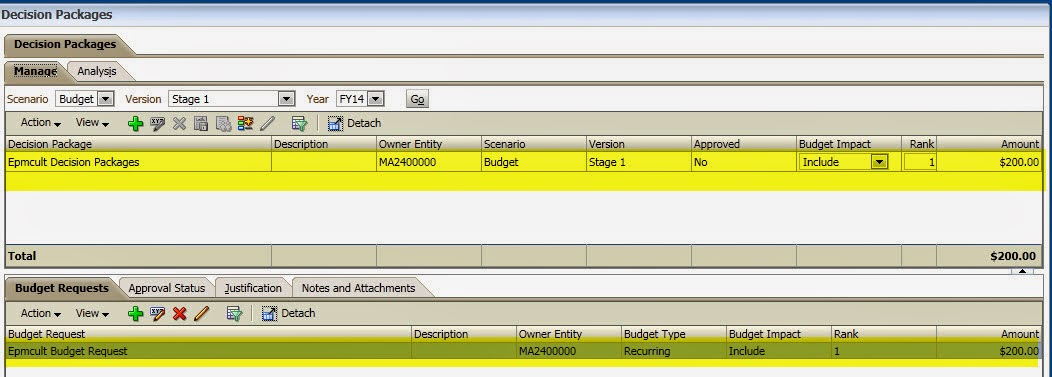
I have entered the value 200 in attached data form and now can be seen at DP/BR level


 The amount should look like below screen. And the entered amount can be seen.

The next is the approval process and you can see the current owner (Decision package creator) is SanjayPlanner. SanjayPlanner will promote to SanjayReviewer and SanjayHead will approve the DP

SanjayPlanner has promoted to SanjayReviewer and SanjayReviewer will promote to SanjayHead

Now I will login as sanjayhead and approve

Finally decision package is approved and can become the part of budget


Saturday, July 12, 2014

Decision Package Creation falls due to “An error occurred while running the specified calc script”

Author:-Sanjay Purohit
 Audience:-Hyperion Solution Architect, Functional Lead and Hyperion Business User.
The Hyperion Public Sector Planning and Budgeting (PSPB) out of box Decision Packages (DP) and Budget Request (BR) functionality is not straight forward. The word “Out of Box” really confuses customers. Customers assume no configuration and setups are required to use this functionality. However the assumption is completely wrong. The setup of DP requires functional understanding of business with Hyperion Planning technical knowledge. The first and most import step of DP setup is modification of pre-built business rule “BIUpdateXXXXXXX”. DP enabled application creates BIUpdate(name of plan type) rule for each plan type. Creation and modification of DP runs this rule on planning server. This rule updates values on Essbase to track recurring and non-recurring budget request.  I was not aware about this fact and try to create a baseline decision packet and got the below given error.


Objective
The purpose of this article is to provide you an understanding of BIUpdateXXXX rule and modification requirement before to create decision packages. If decision package option is enabled during the application creation process; it will create BIupdateXXXXXX rule for each plan type (Where XXXX denotes the plan type name).  Since custom dimension are added after the application creation. The application creation process does not know what member to add in the rule. However this theory does not apply on HCP plan type because HCP comes with Out of box dimension and no modification is required at most of the time.  The modification of BIupdateXXX rule is only required on custom plan types where you have to add custom dimension. The default rule creates a fix statement with “FIX ("Period", "Year", "Entity",{Scenario}, {Version})”member combination. This combination is perfect if we don’t add any custom dimension but most of the time we have to add custom dimension to meet requirements.

how To

I will take an example from one of my application where I had few custom dimensions. The default rule does not have all the members and will not work for below given outline. Let say, if we have to update BIUpdateXXX rule as per the below given dimension. I will go ahead and add (UnspecifiedActivity,Unspecified CIPProject,Totalnd,UnspecifiedLocation, and so on  to each dimensions). These unspecified members will be used to tack data in BIUpdateXXX rule.  


 After updating the rule should look like:-


After modification save/validate/deploy the business rule in calculation manager. You would need to modify BIUpdate business rule in all custom plan types. HCP plan type can be ignored. 

Now try creating a DP. You should not see any error. Please read the Oracle document  for more information