Friday, August 15, 2014

Default Log Location of Hyperion EPM Components


                                                          Author:-Sanjay Purohit 
Audience:-Hyperion Solution Architect, Technical Lead and Hyperion Administrator
Planning application is giving an error message and I am unable to refresh an application. My HFR reports are not working. I just found one article taking about the MIDDLEWARE_HOME and log locations. I don’t understand this language. Why it is happening with my application. Where do I go and see the details message about the error. I get these kind of questions from our clients and I always try to help them over the phone.  All of those questions made me to write this blog. This blog can be very useful for starter. I will also try to provide you Oracle doc URLs for details on each log. I am going to describe the Hyperion terminology and default log location of commonly used Hyperion family products. We will start with Hyperion terminology.

·         MIDDLEWARE_HOME:- is defined during the installation of components and refers the location of middleware components such as WebLogic, HTTP Server, used Java environments. One server can have more than one EPM_ORACLE_HOME its really depends on server configuration. The default location is MIDDLEWARE_HOME. The default location Oracle\Middleware.

·         EPM_ORACLE_HOME:- contains the support files of EPM system. This resides under the MIDDLEWARE_HOME. The default location is Oracle\Middleware\EPMsystem11R1

·         EPM_ORACLE_INSTANCE:- This location is defined during the Hyperion configuration. Most of the EPM/Hyperion components requires deployment location. The default location is Oracle\Middleware\user_projects\epmsystem1.  Users can modify this location during the configuration.

·         WEBLOGIC_DOMAIN_HOME:- most of the EPM components runs on WebLogic. This directory contains server domain for each deployed components. The default name is EPMSystem.

Now we will discusses about the default log location of Hyperion (11.1.2.x) related components. We can differentiates EPM logs in four categories:-
·         EPM Installation Logs
·         EPM Configuration Logs
·         WebLogic Managed Services Logs
·         Application Logs


 Node Manager Start Location
/Oracle/Middleware/wlserver_10.3/server/bin

Opmn  Start Location
Oracle/Middleware/EPMSystem11R1/opmn/bin

EPM Install/Uninstall logs: - This location contains the EPM installation logs. Any error during installation may be seen here.  The default locating is
Oracle/Middleware/EPMSystem11R1/diagnostics/logs/install

Running Uninstaller Location (In case you need to re-install components)
/u02/Oracle/Middleware/EPMSystem11R1/uninstall

EPM Configuration Logs: - The default log location
Oracle/Middleware/user_projects/epmsystem1/diagnostics/logs/config

Running Configurator:-
Oracle/Middleware/EPMSystem11R1/common/config/11.1.2.0

Shared Services Config Schema:-
Oracle/Middleware/user_projects/config/foundation/11.1.2.0

RMI Port
Oracle/Middleware/EPMSystem11R1/common/RMI/11.1.2.0
Oracle/Middleware/user_projects/epmsystem1/RMI

Outline Export from Workspace Location:-
Oracle/Middleware/user_projects/epmsystem1/tmp

LCM Log Location:-
Oracle/Middleware/user_projects/epmsystem1/diagnostics/logs

Patch log location:-
Oracle/Middleware/EPMSystem11R1/cfgtoollogs/opatch/

Diagnostic Logs
Essbase Server Related Logs:-Essbase maintain two logs types of logs to record the server and application related activities. The Location is
Oracle/Middleware/user_projects/epmsystem1/diagnostics/logs/essbase/essbase

Essbase Application Related Logs:-This log keeps the application specific activity logs.
Oracle/Middleware/user_projects/epmsystem1/diagnostics/logs/essbase/essbase/app/(name of application)    

Essbase OPMN logs:-
Oracle/Middleware/user_projects/epmsystem1/diagnostics/logs/OPMN/opmn

Oracle HTTP Server (OHS):-This location contain OHS access and console logs.
Oracle/Middleware/user_projects/epmsystem1/httpConfig/ohs/diagnostics/logs/OHS/ohs_component
·         access_log and access_log.number:- WebLogic-generated log files for a managed server
·         console~OHS~1.log:- Oracle HTTP Server-generated log file, console output
·         ohs_component.log:- Oracle HTTP Server-generated log file

Common Location for All Diagnostic Logs:-This location contains all the installed components start and stop related logs.   
The default location on UNIX Server is:-
Oracle/Middleware/user_projects/epmsystem1/diagnostics/logs/starter
The default log location on Windows Server is:-
Oracle\Middleware\user_projects\epmsystem1\diagnostics\logs\services


      Domain Log Location for Each Deployed Components

Planning Logs:-
C: /MIDDLEWARE_HOME/user_projects/domains/EPMSystem/servers/Planning0/logs   
Planning0.log:-Records Planning Web Application activity
Planning_ADF.log:-Oracle Application Development Framework information
Planning_WebApp.log:-Logs generated for Planning Server interactions
Planning_ADF.log–AD:- (Oracle Application Development Framework) information

Foundation Services Logs:-
Oracle/Middleware/user_projects/domains/EPMSystem/servers/FoundationServices0/logs      FoundationServices0.log–Server and security activity
Framework.log:- EPM System common user interface framework error and informational messages.
SharedServices_Admin.log:-Applications Groups management activity.
SharedServices_Audit.log:-Audit server errors while reading/writing audit information to the database.
SharedServices_Audit_Client.log:-information about the audit client.
SharedServices_CMSClient.log:-Metadata Service client activity.
SharedServices_Hub.log:-Shared Services listener and initialization activity.
SharedServices_LCM.log:-Lifecycle Management activity when it is run from Workspace.
SharedServices_Registry.log:-Shared Services Registry activity.
SharedServices_Security.log:-User management, authentication, and provisioning.
 SharedServices_TaskFlow.log:-Information about Taskflows.
Workspace.log:-EPM Workspace error and informational messages.


Financial Data Quality of Management Enterprise Edition (FDMEE) log:-
Oracle/Middleware/user_projects/domains/EPMSystem/servers/ErpIntegrator0/logs
MIDDLEWARE_HOME/user_projects/domains/EPMSystem/servers/ErpIntegrator0/logs  
ErpIntegrator0.log:- FDMEE application server log
aif-CalcManager.log:- Logs for Calculation Manager.
aif-HfmAdmDriver.log:- Logs for Financial Management ADM Driver.
aif-Planning_WebApp.log:- Logs for Planning Server interactions.

FDMEE Folder Creation Location:- 
Oracle/Middleware/user_projects/domains/EPMSystem

ODI Generated FDMEE logs:-
Oracle/Middleware/user_projects/domains/EPMSystem/servers/ErpIntegrator0/logs/oracledi


Calculation Manger Logs:-
Oracle/Middleware/user_projects/domains/EPMSystem/servers/CalcMgr0/logs
access.log:-What site was accessed inside the Web application (if access logging is enabled)
apsserver.log:-Communications between Calculation Manager.
CalcManager.log:-Calculation Manager Web-tier activities.
CalcMgr0.log:-All Calculation Manager Activities.
apsserver.log:-communications between Calculation Manager and Essbase.
Registry.log:-CM registry activity.
SharedServices_SecurityClient.log:-Logon activities and errors


I spend some time to collect most useful Oracle URLs. Below given URL should be enough to provide you details what you looking for.  

Foundation Services Logs URL

FDMEE Related Logs URL

EPM System Product Logging Matrix URL

Using EPM System Configurator URL

EPM System Configurator and System logs URL

Essbase Diagnostic logs URL

EPM System Product Logging Matrix URL

Planning logs URL

FDMEE logs URL

Application Server, Webserver and EPM system process logs

Using the Log Analysis Utility to Identify Problems


Saturday, August 2, 2014

The Process Flow of Decision Package/Budget Request with Oracle Hyperion Public Sector Planning and Budgeting


Author:-Sanjay Purohit
Audience:-Hyperion Solution Architect, Functional Lead and Hyperion Business User.
We already have discussed about Decision Package and Budget Request in-detail in my previous postings. Decision Packages are a way to present a fund request for a program or new initiative. I will not give you more overview of DP and BR but will show you how to create DP/BR.  The configuration process of DP and BR is complex enough and require deep knowledge of Hyperion Planning and Budgeting applications with business understanding.

Objective
The purpose of this article is to provide you a basic understanding of DP creation and promotion process. I cannot cover any business specific issue/case but will cover a general path of a DP and a BR. I will demonstrate you following steps:
·         Setting up a sample Planning Unit Hierarchy to use with DP
·         How to Create Decision Package.
·         How to promote decision package.

how To
I will take an example from one of my applications and create three users with the name of SanjayPlanning, SanjayReviewer and SanjayHead.  The SanajyPlanner is the first user who will create decision package and promote to his supervisor SanjayReviewer and then will promote to head of department SanjayHead. The entire promotion path is pretty simple.

I have setup a sample PUH for one department

Sanjay Planner will create a decision package on base level entity MA24000 and will promote to next level/user MA24X. The approval path should be MA2400>.MA24X> Total GL Entity
Now we will  start creating  a Decision Package.

The first screen will require Name of DP, Scenario, Version, Rank, Impact and entity. The Decision Packages Reviewers name is optional an can come from Master PUH

The second screen is attribute screen. We have setup attributes inside decision package attribute

The third screen is justification screen. Remember we had setup justification question in my previous posting. Here we just need to answer those questions.

 The last screen is summary screen. And users can see the entered details.


The next step is to create Budget Request (BR). The BR only can be created after DP.


The creation process of DP and BR is exact same. The first screen of BR also requires; Name of BR, Rank, Budget Impact, Owner Entity and Budget type.

We have not setup any attribute so we will skip this steps and move to justification screen. User needs to enter justification and view on the summary screen.

 The summary screen show the entered information

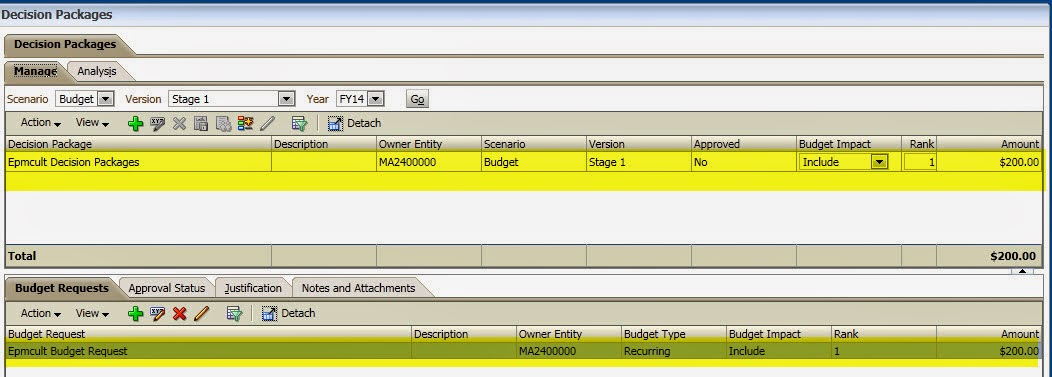
I have entered the value 200 in attached data form and now can be seen at DP/BR level


 The amount should look like below screen. And the entered amount can be seen.

The next is the approval process and you can see the current owner (Decision package creator) is SanjayPlanner. SanjayPlanner will promote to SanjayReviewer and SanjayHead will approve the DP

SanjayPlanner has promoted to SanjayReviewer and SanjayReviewer will promote to SanjayHead

Now I will login as sanjayhead and approve

Finally decision package is approved and can become the part of budget


Saturday, July 12, 2014

Decision Package Creation falls due to “An error occurred while running the specified calc script”

Author:-Sanjay Purohit
 Audience:-Hyperion Solution Architect, Functional Lead and Hyperion Business User.
The Hyperion Public Sector Planning and Budgeting (PSPB) out of box Decision Packages (DP) and Budget Request (BR) functionality is not straight forward. The word “Out of Box” really confuses customers. Customers assume no configuration and setups are required to use this functionality. However the assumption is completely wrong. The setup of DP requires functional understanding of business with Hyperion Planning technical knowledge. The first and most import step of DP setup is modification of pre-built business rule “BIUpdateXXXXXXX”. DP enabled application creates BIUpdate(name of plan type) rule for each plan type. Creation and modification of DP runs this rule on planning server. This rule updates values on Essbase to track recurring and non-recurring budget request.  I was not aware about this fact and try to create a baseline decision packet and got the below given error.


Objective
The purpose of this article is to provide you an understanding of BIUpdateXXXX rule and modification requirement before to create decision packages. If decision package option is enabled during the application creation process; it will create BIupdateXXXXXX rule for each plan type (Where XXXX denotes the plan type name).  Since custom dimension are added after the application creation. The application creation process does not know what member to add in the rule. However this theory does not apply on HCP plan type because HCP comes with Out of box dimension and no modification is required at most of the time.  The modification of BIupdateXXX rule is only required on custom plan types where you have to add custom dimension. The default rule creates a fix statement with “FIX ("Period", "Year", "Entity",{Scenario}, {Version})”member combination. This combination is perfect if we don’t add any custom dimension but most of the time we have to add custom dimension to meet requirements.

how To

I will take an example from one of my application where I had few custom dimensions. The default rule does not have all the members and will not work for below given outline. Let say, if we have to update BIUpdateXXX rule as per the below given dimension. I will go ahead and add (UnspecifiedActivity,Unspecified CIPProject,Totalnd,UnspecifiedLocation, and so on  to each dimensions). These unspecified members will be used to tack data in BIUpdateXXX rule.  


 After updating the rule should look like:-


After modification save/validate/deploy the business rule in calculation manager. You would need to modify BIUpdate business rule in all custom plan types. HCP plan type can be ignored. 

Now try creating a DP. You should not see any error. Please read the Oracle document  for more information

Friday, July 11, 2014

Decision Packages and Budget Request with Oracle Hyperion Public Sector Planning and Budgeting Application

Author:-Sanjay Purohit

Audience: Hyperion Solution Architects, Functional Lead and Hyperion Business users
The Hyperion Public Sector Planning and Budgeting (PSPB) come with out of box Decision Packages (DP) and Budget Request (BR) functionality. This functionality was a core selling point of Oracle PSPB sales team to municipal, city and state governments. Government highly uses DP during the budget formulation process.  However the out of box functionality requires some setup and does not meet most of requirements. We will cover a brief overview of DP and BR. We will also demonstrate the initial setup of decision packages.

Objective
The purpose of this article is to provide you brief information about DP/BR and also provide you an overview of setup process. I will also demonstrate the life cycle (The entire approval process) of decision packages in my next posting posting. Before we start, let me write something about DP/BR; and how they are used during the budget formulation.
Decision Packages (DP): - The DP is one of the primary elements to formulate government budget. The DP is a mechanism for department/division to make convincing case of their proposal. The DP puts all narrative justification, associated financial cost, required man power together and allows department head or staff member to submit an incremental/onetime request funding request. The budget office really depends on DP justification to make any judgment.
Budget Request (BR):- Each decision package may contain one or multiple budget requests for funding a position, hiring an employee or operating expenses. All BRs aggregate to decision package and follows a promotion path.  BR can have narrative justification and the text can be mapped to budget book publication. However the reporting options are limited.

Decision Package Highlights:-
·         Decision package option should be enabled during the application creation otherwise this functionality will not be available. This functionality is only available with Classic planning application. EPMA does not qualify. JJJJ
·          If a user creates a decision package and define display alias for entity; the alias of entity will display on decision package creation screen. ( only user  friendly function)
·         Budget request and decision package can be ranked in an order as per department/budgeting office priority.
·         Decision package provides flexibility of including and excluding a DP from total budget.
·         Decision packages follow the master planning unit hierarchy (PUH) but can be configured a specific approval path. Admin also needs to assign scenario and version to PUH/DP.
·         The promotion of decision packages triggers validation rules on planning server. The DP will not be promoted if any validation rule fails or givens error.
·         Decision package provides a flexibility of sharing with multiple entities/cost centers.
·         Planning BSO cube has limitation; Oracle recommends pushing the entire compensation budget, operating budget and decision package data to ASO cube.
·         Decision packages are primary built for Public Sector Planning and Budgeting application. But if users wish to use DP enable application will not able to use mass update such as overwrite compensation or allocation default.
·         Decision package cannot be deleted if it is being shared or have not zero value.
·         Users can not terminate employee in non-recurring budget request. Termination of employees of employee is only supported on recurring budget request.
·         Decision packages have reporting limitation. Only few reporting option are available to report DP and BR.
·         Baseline decision package represents current service level of organization budget and new decision package can be added on top of it.
·         User must have write access to own and edit decision package and view access to view.
·         Decision package is capable of delta capture budget request.
·         Users can add notes/comments and attach notes to explain decision package.
·         Administrator needs to create BR_1 …BR_2… and…. BR_& members to hold decision packages.

how To

Creation of BR Members: - Admin user should create BR_ member for users.  I am going to crate 30 member in below given example. The new created members will be used with DP


Creation of DP Type: - DP types are a way to organize the DP.  I have created new DP type Operational & Personal. The admin can create DP type by going to Administration>Manage>Decision Package>Decision Package Type. Each Type of DP should have following. The PSPB comes with two default DP types.
  • All Decision Packages
  • Compensation Expenses


Data Collection Forms: - Admin can assign any decision package compatible data form under this tab by clicking plus sign


Reporting Application Mapping: - DP provides a functionality to push data to reporting cubes. Oracle recommends using ASO cube for reporting application


Rollup Member: - Setting up of rollup members is required to see the data on DP and BR level. Admin roll-up members and write a business rule according. I have setup the roll up as per my dimension needs. The roll up of HCP cube comes out of box (Default) Please see Hyperion Public Sector Planning and Budgeting guide for more info.


Justification Questionnaire: - This is the place to setup an explanation or addition information that users must enter before to submit any decision package.  


Decision Packages Type Attributes:- DP attributes can created for reporting purpose


Wednesday, June 25, 2014

How to Identify Employee and Positions with Missing Allocations with Public Sector Planning and Budgeting Application

Initial Draft:-Tejas Patel                                                                  Review & Updated By:-Sanjay Purohit

Audience: Hyperion Solution Architects, Functional Lead and Hyperion Business users
Hyperion Public Sector Planning and Budgeting (PSPB) application comes with three prebuilt configuration options.


Employee Only: - This model is used to track and budget/compensation by employees who are assigned to various jobs and benefits.

Position Only: - This modes is used to tack and budget/compensation by positions. The compensation amount will be based on overall FTE and benefits.

Employee and Position: - Most commonly used model by municipal and state governments. This model tracks budget by employee with assigned position and benefits.

Any configuration model can be selected based on organizations need.  Oracle has spent good amount of money and time to come up with PSPB design and options. All three modules are loaded with prebuilt business rules and data forms; and should meet most of the requirements out of box but we don’t live in perfect word and each client has specific needs which require customization. I personally don’t like to customize HCP at all.

Objective

The purpose of this article is to identity positions and employee in PSPB application with missing allocations. Hyperion Public Sector Planning calculates position and employee compensation on various factors such as salary grades, hours and FTEs.  The final compensation numbers are pushed to LineItem plan type. The assigned segments determine how the cost should be allocation across segments. The right amount should go to right bucket in General Ledger (GL).  Checking allocation of each position and employee is tedious process with current pre-built HCP functionality.  I am going to demonstrate; how to build a data form to identify the missing allocation by departments/entities. We will cover two modules “position” and “Employee and Position” module. I personally have expertise with both.

solution

Employee and Position Module/Configuration: - Design a data form with following member combinations. This should provide the position/employee with missing allocation.  This data form pulls all the position and employee associated with entity. Each position has a start date and should have allocation start date.  Missing start date denotes missing allocations.


Position Only Module/Configuration: - Design a data from with following member combinations. This should provide the position with missing allocations. I have placed entity on rows to see all the entities once. This could cause planning crash. You also can place entity on pages items to be on safe boat.  


Thursday, June 19, 2014

Hyperion Financial Management- Unable to create application due to “TNS: could not resolve the connect identifier specified”

Author: - Sanjay Purohit

Audience:  Hyperion Solution Architects and Hyperion Database Administrator.
I installed Hyperion Financial Management (HFM) on my server and was very excited to have my own dedicated HFM server. I really did not find any difficulty during installation and configuration.  The entire process went smooth and I was wondering why I did not encounter an error!! I should have got at least one. My installation was single server windows 2008(R2) installation. All the components were in same box. I also installed Oracle Database 11g on the same windows machine and did not realize the possible implication/setting with HFM. The HFM needs Oracle Database client to be installed on same server to connect to relation repositories but I had database on same server so thought not to install clients. I am not relation database person therefore It took me long time to figure out the exact relationship between Hyperion installed client and oracle home.  I did not realize that if I don’t install clients I have to use existing clients. After finishing up configuration I tried to create a new application using sample application and finally got an error!!!

Error
During the application creation you might encountered an error “TNS: could not resolve the connect identifier specified“. 

I goggled but could not find any specific to HFM since it’s an Oracle Database related error; most of the searches were database related. Then I finally decided to dig into Oracle installation and configuration guide to get the solution.  

REASON
Hyperion Financial Management requires database client to be installed on same server. EPM installation also installs Oracle client by default if you install HFM. However it‘s optional.  The existing installed client can be used.  Oracle HFM supports both the methods. The Oracle Database clients establish connection between HFM and Oracle Database. Please refer below URl for more details:-
 I will demonstrate the process of using existing client to create HFM application.

solution
HFM configuration process populates tnsnames.ora files file under the EPM_ORACLE_INSTANCE/user_projects/config/dbclient/tnsnames location. This file contains the HFM configuration TNS entries
The goal is to move the above TNS entries to existing database client so it can leverage both. We will copy above TNS entries to existing tnsname.ora files and the files should look like below.  The location of tnsname.ora can be different depending on version of make or version of database
After making the changes you will need to restart HFM services.  You should be able to create application with no error


Note:- The Location is

C:\Hyperiondb\product\11.2.0\dbhome_1\NETWORK\ADMIN
C:\OracleHyp\Middleware\user_projects\config\dbclient


Wednesday, June 11, 2014

Resetting Hyperion Admin Password if you forgot

Author: - Sanjay Purohit

Audience:  Hyperion Solution Architects and Hyperion Database Administrator.
I received a phone call from one of my coworker regarding resetting Hyperion admin password.  He installed Hyperion on a server.  He also prepared an installation document and handover to client for review.  The client was kind enough and did not user Hyperion for a while and also lost installation document.  After few months- my friend received a phone call from client asking Hyperion admin password and he also forgot. He needed to reset the Hyperion admin password. This posting is dedicated to my friend JP.  


objective
The goal of this posting is to “Reset Hyperion Work-space admin Password”.  Hyperion encrypts user friendly language and stores the password on shared services schema. All the native users can be seen on “CSS_USERS” table.  Resetting the admin password is an easy task and can be achieved little knowledge of relation database. 
Login to Shared Services Schema ( The user you used during the shares services configuration) with SQL developer or any other tools and look for “CSS_USERS” table.


 Run the following command


update CSS_USERS

set PASSWORD= '{SSH2}mpQoG4jU00otFocLZM6CWWUzpk9ZmSY5In3l3ZzFCH5byRhkG6ow7z4KxXmXWXSo'
where name='admin';

This will setup the admin users password to ‘password'

Note:-
To set the password to ‘welcome1’ =
‘{SSH2}FvSZVSvSmzvjT/02Nn1TrJyQk8SqNus4Fw4m2cNxa3zkSLe8HFiJy7cT8zUDGiWi’
To set the password to ‘password’ =
'{SSH2}mpQoG4jU00otFocLZM6CWWUzpk9ZmSY5In3l3ZzFCH5byRhkG6ow7z4KxXmXWXSo'