Sunday, May 24, 2015

Hyperion Public Sector Planning and Budgeting Basics


Oracle Hyperion Public Sector Planning and Budgeting, is an integrated budgeting and planning solution suite that enables public sector and higher-education organizations to manage existing and projected budgets using current and previous General Ledger and Human Resource Management (HRMS) data.  Oracle PSPB requires deep understanding of Human Resource Management System (HRMS) and very few people understand the concept of HRMS. I often receive phone calls from our customer asking HR related questions and I always refer them to PSPB user’s guide and other HRMS books. I have tried to put most the PSPB related definitions on this article.

Positions in Oracle HRMS

Definition
Positions are used to define employee roles within Oracle Human Resources. Like Jobs a Position is an optional component of the Employee Assignment. However, unlike Jobs, a Position is defined within a single Organization and belongs to it. In other words, a position is a specific occurrence of one job, fixed within one organization.  Positions are independent of the employees who are assigned to those positions. You can record and report on information, which is directly related, to a specific position rather than to the employee.
For example, the position 'HR Manager' would be an instance of the role of 'Manager' in the 'HR' organization.  The position belongs to the organization. There is also a position of ‘HR Manager’ but this position is owned by the ‘Marketing’ organization.  Since the organization is different, this is another position.  There may be one, many, or no holders (incumbents) of a position at any time.
The position-based Organization is typically a highly structured environment in which all aspects of work and payment are well organized and regulated.  Common examples of this type of enterprise are found in government, education and other public sector industries.  A key feature of this type of enterprise is the concern with managing positions, or posts. Positions exist, and are managed independently of people in the position.  When a person is assigned to the position, that individual assumes the attributes that have been defined at the position level.  With this in mind, a singular position must be created for each unique combination of attributes for a position.
Positions are normally used in role-based enterprise structures where clearly defined rules largely determine the way employees work, and the compensation and benefits they receive.
A position will need to be defined for every unique combination of:
·         Job
·         Organization
·         Reporting To Position Hierarchy
·         Valid Grades (Valid Grades to which incumbents are assigned)
·         Position Requirements (Required qualifications or valid experience)
·         ·Position Evaluation (Evaluation information and overall evaluation score for the Position)
·         Position Key Flex Field (Name Field components, such as Position Title, Position ID or other client defined keys)
·         Position Successor
·         Probation Periods (To define the length of the Probation Period for incumbents holding this position)
Implementation Considerations for Positions
Position Hierarchies: Position hierarchies identify the reporting structure between one position and another position, versus a person reporting to another person.   This allows incumbents to move in and out of positions, leaving the reporting relationships intact, since the reporting relationship is not bound by the person assigned to the position.  Position hierarchies are needed if the client wants to control access to the system based on positions.  For example, if the client wants to ensure that the Manager of the organization can only view information about an employee based on reporting relationship, positions must be implemented. 
For Integration with other Modules: For Oracle Financials, positions are also needed to control levels of authorities.
Oracle Purchasing uses Jobs and Positions in the Document Approval process. Approval rules can be assigned to either Jobs or Positions by Document Type. If Positions are used, Position Hierarchies can be created for controlling the routing of documents through the approval process. Either the Employee- Supervisor method of forwarding documents (tied to Jobs) or Position Hierarchies (tied to positions) can be used. The Position needs to be assigned to an Organization and Job. Oracle Project Accounting allows users to budget and bill based on jobs, and to include job titles on invoices.

      Advantages:
Position definition with no override attributes, ensures derivation from the position.  It is more accurate because the definition focuses on the position and is not affected by the employee in the position
Deriving information from the position greatly decreases the data entry at the employee level.  Position attributes change less often than employee movement.  When the position attributes change, the system automatically updates incumbent records with the new value.  For clients who implement a many-to-one position relationship, this is highly valued as a single update to the position’s attributes will update each incumbent’s employee record

Defining Positions
Position Details Tab:
Pooled:  This approach is very good for organizations where groups of people are doing the same work (many employees assigned to one position), have the same reporting relationship (predominate in manufacturing and transportation industries).  This approach allows multiple people to occupy a single position that has the same attributes and reporting relationship.

Shared: This approach supports the ability to assign employees to several part-time positions.  This approach is becoming more common.  In some companies, an employee works part-time (20 hours) in one department and then part-time (20 hours) in another department.  In essence the company divides the employee and distributes the cost across the two departments.  The company benefits from only having to pay benefits to one person.

Shared Positions (Another Definition from Oracle)
Several incumbent employees can be assigned to a shared position, up to the value of the FTE defined. With shared positions, Public Sector Planning and Budgeting ensures that the total number of FTEs is the same as the number of assigned employees filling the position, plus the position vacancies. For example, if a position has an FTE of six to which four employees (each with an FTE of one) are assigned, the remaining headcount of two is a vacant expense. Assume that a Night Security Guard position has an FTE of two, a loaded headcount of four, and to which four part-time employees (each having an FTE of 0.5) will be assigned. If you assign one of the Night Security Guards an FTE of one (full time), three FTE or headcount remain. If a shared position is partially filled, average or default position-level salary, benefit, and allocation information derives the expense estimates of the filled and vacant portions of the position.

Pooled Positions (Another Definition from Oracle)
Because a potentially changing number of employees can be assigned to a pooled position, pooled positions can have multiple employee assignments. If an FTE value is unspecified for a pooled position, expenses are not calculated. Loaded pooled positions usually do not have FTEs. For these positions, budget expenses are calculated for assigned employees, and vacant expenses do not exist. FTE is usually not defined for pooled positions. However, to budget for a new pooled position without knowing how many employees will be assigned, assign a position FTE; budget expenses are computed based on this FTE. Typically, pooled positions are not used to calculate vacancy compensation, although you can define FTE without having first specified employee assignments


Single Incumbent: This approach is usually used for positions, which are managerial or at least static.  This approach is usually needed for those positions, which will have spending authority levels, and defined succession planning.  This approach assumes on position per person


Hiring Information:-
FTE: - (Full Time Equivalent): Number of FTE for the Position.
Headcount: - Proposed Number of employees for the Position.
Bargaining Unit: - This is usually the legally recognized collective negotiating organization. This is taken from the Look up 'BARGAINING_UNIT_CODE'
Earliest Start Date: - The Date after which people can be inducted into the Position.
Fill By date: - Cutoff date for filling the Position.
Permit Recruiting: - This is just for information Purpose to check if employees can be recruited for this Position and doesn’t impose any validation.

  Proposed Entry Salary:-
Payroll: - Payroll for Employees Holding this Position.
Salary Basis: - Salary Basis for Employees Holding this Position.
Grade: - Select the entry grade, which can be used to determine the entry salary. If valid Grades are defined, this should be one of the valid Grades for the Position. If the position is paid from a pay scale, select the grade step and scale rate that represent the entry-level salary for this position.  
Probation: - Probation Period of this Position,
Overlap: - Length of time a new incumbent can overlap with a leaving incumbent for transfer of skills.
Proposed Layoff: - Enter the Details of Layoff if needed.


Work Terms:-
Working Hours: Enter the Working Hours and the Frequency.
Normal Time: Start and end time of work.
Supervisor:  Person who supervises the Position.
Replacement Required: Check this if a Person Should get a Note to enter the Replacement person while entering absence information.
Works Council Approval: This is for European Countries. Select the Works Council Approval check box if the position falls under the jurisdiction of a Works
Related Position:  Specify the position of the person managing the Position. We use this when a Position is Managed by the Holder of a particular Position rather than a person.
Relief: Specify the alternate Position to cover this position when the holder of the Position is absent. I.e. The alternate Position employee will cover this Position when the Holder is absent.
                Successor: This is the Position from which a successor will move to this position when this position is vacant

Additional details:-
Enter comments, a posting description for recruitment purposes, and any special confidentiality or security requirements, such as a clearance level.

Budget:-
In the Budget Detail region, the application displays the measurement units the budget is tracking. You can enter total allocations for each measurement unit in the Allocated fields.
In the Periods region, you can also enter date ranges in the Start Date and End Date fields to identify budget periods you defined in your budget version. Here you can enter allocations at the period level.


Source:-
Position in Oracle HRMS: What Are They and How Are They Used? (Doc ID 434046.1)

Sunday, April 19, 2015

Planning Security with Hyperion Financial Reports


              Audience:  Hyperion Solution Architects and Hyperion Database Administrator

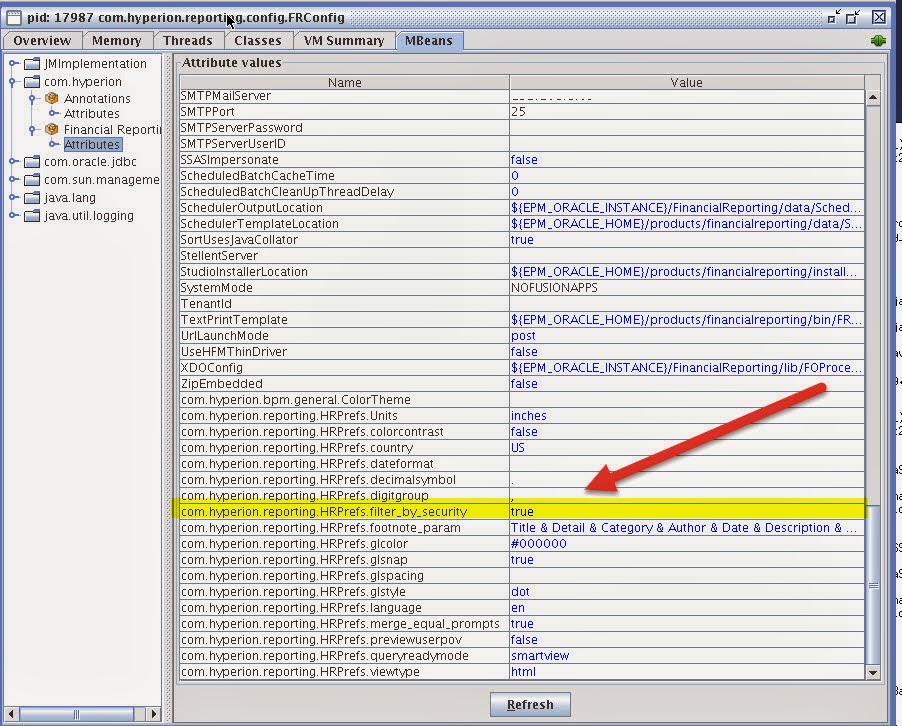
Hyperon Financial Reporting Studio (HFR) is used to create fully formatted reports. The HFR is really user friendly and can be learned by business users. HFR leverages planning security if a report is designed using a planning connection. For example, if a Planning user is assigned access to Version- Baseline, Entity = IT department and Account = 12360. The same security should be applicable when user runs a report. 

GOAL
HFR does not follow planning security. I notice this issue with planning 11.1.2.1 and logged a bug. Oracle was not able to provide a solution in two years for this bug. Finally 11.1.2.3.501 has come up with a solution of this bug. Bug “18083693 A Planner user that has been granted limited meta-data access is able to see all members in User POV and prompts, but will get an error when selecting a member that they have not been granted permission to”. You would need to apply Patch 18183723: Patch Set Update: 11.1.2.3.501 for Oracle Hyperion Reporting and Analysis Financial Reporting Release 11.1.2.3.500 apply the patch

how To
Afer applyig the patch “com.hyperion.reporting.HRprefs.filter_by_security” set a true.
The properies can be found at
Oracle/Middleware/EPMSystem11R1/products/financialreporting/bin/FRConfig.sh/cmd
HFR should restrict reports member as per planning security


Oracle Doc
http://docs.oracle.com/cd/E40248_01/epm.1112/fr_webadmin/frameset.htm?ch03.html

Planning Attached ASO Cube Security with HFR and SmartView

                                
Audience:  Hyperion Solution Architects and Hyperion Database Administrator

Planning 11.1.2.3 provides an option to create ASO cube as part of planning application. I should be using word plan type rather than cube because it’s part of planning application. Creating ASO as plan type creates new ASO application on Essbase server. Planning reads ASO a plan type but Essbase does not. 


I have created a Planning application with five plan types including “Report-ASO” and BRTP is a separate application. Planning security filters are pushed to Essbase (BSO) application but Planning is not capable push security filters to ASO application. I tried to create security filters manually to Report-ASO cube but whenever I refresh the planning application; manually created security filters are wiped out from ASO application. I was really surprised to see planning refresh process was pushing metadata changes but not security filters. User can run reports regardless of security setup and creates ad-hoc grids in smartview. This is a major security risk. Users can see each other data.
  
Objective
The purpose of this article is to demonstrate the following:-
·         How to use Planning security with ASO cube when running report using HFR
·         How to hide Essbase (ASO) application from Smart-View to use Planning security

how To
How to use Planning security with ASO cube when running report using HFR:- I really don’t consider this as solution but can be used as a workaround.  We would creat a new HFR “Database connection as Planning” to leverage planning secutity. Planing is able to recognize ASO as part of plan type and will allow you to cteate a connection. By using Planing connection ASO can leverage the same security.
  
·         How to hide Essbase (ASO) application from Smart-View: - User can see available options such as Essbase, Planning and Reports. Planning security will not be applicable if a user select Essbase connection and access Report-ASO cube. User can create ad-hoc and run the report without any security restriction.  
The only workaround is to use planning connection and hide Essbase option from Smart-View


and disable provider services for and use planning connection.


Helpful KM 
Essbase Server is Not Listed in the Drop-Down List of the Shared Connections in SmartView 11.1.2.2 (Doc ID 1568573.1)

Security Filters For ASO Planning Application (Doc ID 1625712.1


Friday, January 30, 2015

Because of inactivity, your session has timed out and is no longer Active Click Ok to reload the page- Hyperion Planning

                                                                       Author:-Sanjay Purohit
Audience:  Hyperion Developer and Hyperion Planning Database Administrator


 I am the person who works on multiple tasks at same time and cannot resist myself to swing here and there.  On the recent Hyperion implementation I came across an annoying issues and it was preventing me to work on multiple data forms and data load screen.  I was trying to open an application on multiple tabs and work simultaneously.


But I was not able to work due to planning timing out error. The planning was timing out and prompting for new login


Objective
The purpose of this article is to increase time out setting of Hyperion Planning and avoid the “Because of inactivity, your session has timed out and is no longer Active Click Ok to reload the page “error message.  This common error can be seen when multiple tabs are opened on same web browser.  I goggled and found few discussion and articles online but none of them were clear enough to understand the changes.

how To
The timing out setting is control by WebLogic   “CLIENT_STATE_MAX_TOKENS “parameter. We would find this parameter under “web.xml’ file.   The files is located under /Middleware/user_projects/domains/EPMSystem/servers/Planning0/tmp/_WL_user/PLANNING_11.1.2.0/3i5tnd/war/WEB-INF/web.xml

The default “CLIENT_STATE_MAX_TOKENS” is 5. Increase this value to 15 and then increase gradually if needed.

After making the changes clean the browser cookies and  start working on multiple tabs !!!!!!!


Or alternatively you  need to go to  
Oracle/Middleware/EPMSystem11R1/products/Planning/AppServer/InstallableApps/Common/HyperionPlanning.ear

and modify the HyperionPlanning.ear\HyperionPlanning.war/WEB-INF/web.xml file


CAUTION
The changes was made to tmp folder and will not hold the same value if any patch is applied or tmp folder is deleted . 

Related blogs and URLs
Understanding “Client_state_Max_tokes”

ADF

Oracle Discussion
  
Oracle Meta-Link
Session Timeout while Accessing Web Pages (Doc ID 1396642.1)

Sunday, January 18, 2015

Drill-Back to Source System to Source System Oracle General Ledger using FDMEE via Planning/Essbase

Author:-Sanjay Purohit
I have seen few posting on Oracle community regarding the FDMEE Drill Through functionality setup and required Oracle-GL responsibilities. FDMEE provides drill through functionality from planning to source systems. This functionality is very useful for financial/function users who want to verify the data accuracy from GL and also wants to know the source of transaction.

Objective
The purpose of this article is to demonstrate how to setup the drill through form Hyperion Planning to Oracle GL using FDMEE. I will not cover source system/data load and other FDMEE related setup.
Enter the Oracle GL URL by going to . Make sure you enter the URL such as http://Sanjay.epmcult.com:18000

Navigate -> Administer - > Data Management -> Setup -> Source System  

Enabling “Drill Region” to Target Application by going . Make sure you enter
Navigate -> Administer -> Data Management ->Setup -> Target Application -> Application Option
Setup the Drill region to “Yes

Setting UP Appropriate GL responsibility
Navigate -> Administer -> Data Management ->Setup -> Source Accounting Entities and select “GL Inquiry/Reports User” responsibility


Make sure when data is loaded you should be “Crate Drill Region HPL_DRILL_REGIONS”


Now let’s go to Planning application and drill through to Oracle-GL. The data from should have drillable views


 By  click you should be landed to FDMEE Data load location. This location stores the EBS URL

You should be able to see the General Ledger screen with dollar value. Make sure you login user should have “GL Inquiry/Reports User”  Responsibility

Saturday, January 17, 2015

Retrieving Hidden Password from EPM Registry


Author:-Sanjay Purohit
I normally take screen shots and make notes whenever I install Hyperion but sometime I forget to document the schema password details  or  DBA forgot to setup the password profile as never expire and schema password gets expired and you are stuck. Your DBA reset new password and you have to re-run the configurator. 

Objective
The purpose of this article is to demonstrate how to retrieve the hidden password of configured components.  Retrieving the password is two-step process. First you would need to run the epmsys_registry.sh/bat   from /Middleware/user_projects/epmsystem1/bin.


 The output of the report will be stored under
/Middleware/user_projects/epmsystem1/diagnostics/reports as registry.html. The report can be opened in any browser. I am going to select FDMEE (aif_product) to retrieve the password.
  
The same information can be retried by using
sh epmsys_registry.sh view aif_product/database_conn/@dbPassword

But the password is encrypted. We would need to decrypt the password. Run the below given command to decrypt the value.

sh epmsys_registry.sh viewencryptedproperty aif_product/database_conn/@dbPassword
sh epmsys_registry.sh view encrypted property planning_product/database_conn/@dbPassword


The hidden password is welcome1.


Related Webpages and Blogs
 Oracle Blog-EPM troubleshooting Utilities

How to deleted registry components

Friday, January 16, 2015

Syncing Business Rules With Planning Application

Author:-Sanjay Purohit

There is a time when developer creates business rules and no longer needed or business rules are delete from calculation manger but are still visible in planning application.  I get many calls from client regarding planning and calculation manger business rule syncing issues therefore I am posting the article.

Objective
The purpose of this article is to demonstrate how to delete business rules from planning application which are already deleted from calculation manger and how to sync renamed business rules with planning application.

·         Newly create business rules are not visible in planning application :-> Business rules are created in calculation manger but are not visible in planning application.  On the below given image you can see  business rule are visible in calculation manger but are not in planning application


The business rule are not visible in Vision Planning application

HOW To

We will sync business rules from calculation manger and rule will visible in planning application. To sync business rule you would need to Login to Calculation manger by navigating to Navigate > Administer > Calculation Manager.
Make sure you are In System View, and select planning application -> right-click -> Deploy.
Make sure you are deploying at application level not at the plan type level.
   

After deploying the rules should be visible to planning application

The same theory applies to
·         When business rule are renamed and new name should be push to planning application.
·         When business rules are delete from Calculation Manger and but still visible in Planning.
·         Newly created business rules are not visible in planning application. 


Wednesday, November 26, 2014

Changing Hyperion Planning Default RMI Port 11333

                                                                        Author: Sanjay Purohit
Audience:  Hyperion Solution Architects and Hyperion Planning Database Administrator

Hyperion web services have default port no and listing ports rang.  I try to use default port in my installation whenever possible. The default ports are always easy to remember. But In some cases you have to change the default port no.

  Goal
Changing the default RMI port no from 11333 to any other port. There are many articles on meta-link (Oracle support) but most of them are old and poorly written. None of Oracle knowledge document worked for me when I had to change the port no. Changing default RMI port requires following steps.

·         HyperionRMI_Port.properties:- Change the value to new desired port. The default location of this file is EPMSystem11R1/common/RMI/11.1.2.0/HyperionRMI_Port.properties


·         COMMON_RMI_PORT:- You will need to add new Planning system property on workspace by going Administration>Application>Property. This property should update the HSPSYS_PROPERTIES database.
·         The third step is to modify the RMI.properties so start scripts can pick up right port :- The default location of this file is user_projects/epmsystem1/config/starter/RMI.properties

·         The last step is to modify the RMI.properties :- The default location of this file is
Middleware/user_projects/epmsystem1/RMI/HyperionRMIRegistry


·         Restart Planning, RMI, EAS and Calc Manager to run RMI on new port no.


Related Oracle Knowledge Article.
·         How to Change Hyperion RMI default port [11333] in Linux (Doc ID 1276021.1)
·         How to reconfigure or change the default planning ports in EPM 11.1.1.x (Doc ID 873963.1)
Please note:- This was tested with EPM - 11.1.2.3